I have finally finished the website for hosting my comic strips.
Total Pageviews
Showing posts with label Administering. Show all posts
31 Dec 2018
28 Nov 2018
Visual Studio Code: Black screen issue. Fix
If you are like me and you had an annoying issue with Visual Studio code that caused a black scree then you will like this fix.
My old fix:
This was launching VS Code without GPU acceleration. It was a workable solution, but still very inconvenient.
New, permanent fix:
- Open your Nvidia Control panel
- Set Physx Configuration
- Under Select a physX processor select "CPU":
My old fix:
code --disable-gpu
This was launching VS Code without GPU acceleration. It was a workable solution, but still very inconvenient.
New, permanent fix:
- Open your Nvidia Control panel
- Set Physx Configuration
- Under Select a physX processor select "CPU":
26 Jul 2018
Migrate MS Flow and PowerApps to a different Office 365 tenant. SharePoint Data Sources
Have you ever tried moving PowerApps or MS Flow from one Office 365 tenant to another? If you have SharePoint as a data source - then the only official way is to remove all such data sources and add them back. This PowerShell script will help you to automatically convert exported App packages to be compatible with the new tenant. This way you won't have to recreate SharePoint data sources.
Here is the script that will help you with this ordeal: https://github.com/Zerg00s/FlowPowerAppsMigrator
18 Jul 2018
SharePoint 2016 Restore User that was deleted from User Information List
There could be a scenario when the user was deleted both in AD and the User Information List and we need to restore it. That could be necessary when there was a custom solution developed that relies on the user accounts to exist in SharePoint. Needless to say these solutions were developed incorrectly, but who am I to judge.
For these rare cases, here is the way that to restore the deleted user. This worked for me in SharePoint 2016, but it might also work in 2013 and 2019.
Disclaimer: Any direct modifications to the SharePoint SQL databases are not supported by Microsoft. Restore the user by following approach only if you know for sure what you are doing.
1. First of all - determine an ID of the deleted user:
3. Modify a row where tp_id is equal to the user's ID:
a) set tp_Deleted to 0
b) set tp_IsActive to True
c) Save changes to the row
4. For the appropriate content database, run the following command to find deleted user in the AllUserData table:
Make sure this command returned a single row. If there was a single row - proceed to restoring the user:
5. To restore the user, we need to change bit3 column's value from 1 to 0 :
Done! Now go ahead and click on the deleted user. Verify that there is no error.
For these rare cases, here is the way that to restore the deleted user. This worked for me in SharePoint 2016, but it might also work in 2013 and 2019.
Disclaimer: Any direct modifications to the SharePoint SQL databases are not supported by Microsoft. Restore the user by following approach only if you know for sure what you are doing.
1. First of all - determine an ID of the deleted user:
2. In SQL Management Studio - find your content database and navigate to the UserInfo table. Verify that deleted user is still listed in the table. Notice that tp_Deleted will equal to the user ID and tp_IsActive will be equal to 0:
3. Modify a row where tp_id is equal to the user's ID:
a) set tp_Deleted to 0
b) set tp_IsActive to True
c) Save changes to the row
4. For the appropriate content database, run the following command to find deleted user in the AllUserData table:
SELECT * FROM [WSS_Content].[dbo].[AllUserData] Where bit3 = 1 and tp_ID = User_ID
Make sure this command returned a single row. If there was a single row - proceed to restoring the user:
5. To restore the user, we need to change bit3 column's value from 1 to 0 :
UPDATE [WSS_Content].[dbo].[AllUserData] SET bit3 = 0 Where bit3 = 1 and tp_ID = User_ID
Done! Now go ahead and click on the deleted user. Verify that there is no error.
22 Jun 2018
Determine if SharePoint has enough memory allocated to the distributed cache service
After reading half a dozen articles explaining how to eyeball and calculate the distributed cache size I was wondering: Why no one suggests just to check the current consumption before changing anything? Here is a scary thought: What if we have a ton of memory and we don't need to add any more? I know, this sounds revolutionary.
This is a quick script that I've slapped together to show 1) maximum allocated memory for the Distributed cache. 2) current usage for all AppFabric caches on the current server.
So, before bumping the Distributed cache, test the current consumption with the script below.
Here is the sample result:
This is a quick script that I've slapped together to show 1) maximum allocated memory for the Distributed cache. 2) current usage for all AppFabric caches on the current server.
So, before bumping the Distributed cache, test the current consumption with the script below.
###### DETERMINE IF YOU HAVE ENOUGH MEMORY ALLOCATED TO DISTRIBUTED CACHE:
Add-PSSnapin Microsoft.SharePoint.Powershell
Use-CacheCluster
$hostname = hostname
$configuration = Get-AFCacheHostConfiguration -ComputerName $hostname -CachePort "22233"
Write-host Maximum Size: $($configuration.size)MB HostName: $($configuration.HostName) -ForegroundColor Blue
# Get-AFCache | % {Get-AFCacheConfiguration -CacheName $_.CacheName}
$caches = Get-AFCache | % {Get-AFCacheConfiguration -CacheName $_.CacheName}
foreach($cache in $caches){
$stats = Get-AFCacheStatistics $cache.CacheName
Write-host $cache.CacheName -ForegroundColor Green Cache.
Write-host Usage: $($stats.Size / 1MB) MB
Write-host
}
###### DETERMINE IF YOU HAVE ENOUGH MEMORY ALLOCATED TO DISTRIBUTED CACHE END
Here is the sample result:
2 Nov 2016
Find Configuration Database Connection string in the Registry
SharePoint 2010:
HKEY_LOCAL_MACHINE\SOFTWARE\Microsoft\Shared Tools\Web Server Extensions\14.0\Secure\ConfigDb
SharePoint 2013:
HKEY_LOCAL_MACHINE\SOFTWARE\Microsoft\Shared Tools\Web Server Extensions\15.0\Secure\ConfigDb
11 Oct 2016
Stefan Goßner: PSCONFIGUI.EXE vs PSCONFIG.EXE
Nice article: Why I prefer PSCONFIGUI.EXE over PSCONFIG.EXE by Stefan Goßner
In case you need to use PSCONFIG.EXE to automate some tasks you should use the following command:
PSConfig.exe -cmd upgrade -inplace b2b -wait -cmd applicationcontent -install -cmd installfeatures -cmd secureresources -cmd services -install
7 Oct 2016
PowerShell script for monitoring SharePoint WFE's and SQL Server back-ends
#counters.txt contains a list of performance counters
#collect
$fileName = "test{0:yyyyMMdd-HHmmss}.xml" -f (Get-Date)
get-counter -content (get-content counters.txt) -MaxSamples 2 -sampleinterval 5 | Export-clixml $fileName
#save the results to the blg format. This will allow opening it with Performance Monitor
$fileName = "test{0:yyyyMMdd-HHmmss}.blg" -f (Get-Date)
get-counter -content (get-content counters.txt) -MaxSamples 2 -sampleinterval 5 | Export-Counter $fileName
counters.txt contents: \.NET CLR Memory(*)\% Time in GC \ASP.NET\Application Restarts \ASP.NET\Request Execution Time \ASP.NET\Requests Rejected \ASP.NET\Requests Queued \ASP.NET\Worker Process Restarts \ASP.NET\Request Wait Time \ASP.NET Applications(*)\Requests/Sec \LogicalDisk(*)\% Idle Time \Memory\Available MBytes \Memory\% Committed Bytes In Use \Memory\Page Faults/sec \Memory\Pages Input/sec \Memory\Page Reads/sec \Memory\Pages/sec \Memory\Pool Nonpaged Bytes \Network Interface(*)\Bytes Total/sec \Network Interface(*)\Packets/sec \Paging File(*)\% Usage \PhysicalDisk(*)\Current Disk Queue Length \PhysicalDisk(*)\% Disk Time \PhysicalDisk(*)\Disk Transfers/sec \PhysicalDisk(*)\Avg. Disk sec/Transfer \Process(*)\% Processor Time \Process(*)\Page Faults/sec \Process(*)\Page File Bytes Peak \Process(*)\Page File Bytes \Process(*)\Private Bytes \Process(*)\Virtual Bytes Peak \Process(*)\Virtual Bytes \Process(*)\Working Set Peak \Process(*)\Working Set \Processor(*)\% Processor Time \Processor(*)\Interrupts/sec \Redirector\Server Sessions Hung \Server\Work Item Shortages \System\Context Switches/sec \System\Processor Queue Length \Web Service(*)\Bytes Received/sec \Web Service(*)\Bytes Sent/sec \Web Service(*)\Total Connection Attempts (all instances) \Web Service(*)\Current Connections \Web Service(*)\Get Requests/sec
Show IIS Pool passwords in clear text
Windows 2012+ Solution:
Method #1
Add-WindowsFeature Web-WMI | Format-List Get-CimInstance -Namespace root/MicrosoftIISv2 -ClassName IIsApplicationPoolSetting -Property Name, WAMUserName, WAMUserPass | select Name, WAMUserName, WAMUserPass
Method #2
(Get-Item website).ProcessModel (Get-Item website).ProcessModel.username (Get-Item website).ProcessModel.password
Windows 2008/R2 Solution
cd C:\Windows\system32\inetsrv .\appcmd.exe list apppool /text:*
Add super user and super reader via PowerShell
Add-PSSnapin Microsoft.SharePoint.PowerShell -ErrorAction SilentlyContinue
####SET ACCOUNT NAMES (Replace Domain and UserName)
#SUPER USER ACCOUNT – Use your own Account (NB: NOT A SHAREPOINT ADMIN)
$sOrigUser= "domain\SP_SuperUser"
$sUserName = "SP_SuperUser"
#SUPER READER ACCOUNT – Use your own Account (NB: NOT A SHAREPOINT ADMIN)
$sOrigRead = "domain\SP_SuperRead"
$sReadName = "SP_SuperRead"
$apps = get-spwebapplication
foreach ($app in $apps) {
#DISPLAY THE URL IT IS BUSY WITH
$app.Url
if ($app.UseClaimsAuthentication -eq $true)
{
# IF CLAIMS THEN SET THE IDENTIFIER
$sUser = "I:0#.w|" + $sOrigUser
$sRead = "I:0#.w|" + $sOrigRead
}
else
{
# CLASSIC AUTH USED
$sUser = $sOrigUser
$sRead = $sOrigRead
}
# ADD THE SUPER USER ACC – FULL CONTROL (Required for writing the Cache)
$policy = $app.Policies.Add($sUser, $sUserName)
$policyRole = $app.PolicyRoles.GetSpecialRole([Microsoft.SharePoint.Administration.SPPolicyRoleType]::FullControl)
$policy.PolicyRoleBindings.Add($policyRole)
$app.Properties["portalsuperuseraccount"] = $sUser
$app.Update()
# ADD THE SUPER READER ACC – READ ONLY
$policy = $app.Policies.Add($sRead, $sReadName)
$policyRole = $app.PolicyRoles.GetSpecialRole([Microsoft.SharePoint.Administration.SPPolicyRoleType]::FullRead)
$policy.PolicyRoleBindings.Add($policyRole)
$app.Properties["portalsuperreaderaccount"] = $sRead
$app.Update()
}
1 Jul 2015
SharePoint Ports
Here is a quick link with most of the ports that might be used by SharePoint:
http://www.sharepointdiary.com/2010/04/ports-used-by-sharepoint.html
SharePoint has to communicate with other servers such as Active Directory, DNS etc which require other ports, they are as follows:
Credits to Salaudeen Rajack
http://www.sharepointdiary.com/2010/04/ports-used-by-sharepoint.html
SharePoint has to communicate with other servers such as Active Directory, DNS etc which require other ports, they are as follows:
- AD Authentication: TCP:445 Kerberos :TCP:88
- LDAP: LDAP:389 and LDAPS:636
- DNS: TCP:53
- SMTP: TCP:25
- SQL Server: TCP:1443 (or Custom Ports)
- Server Message Block (SMB) TCP:445 or TCP:137,138,139 (over NetBIOS).
- is used extensively for search and query operations with SharePoint
- HTTP/HTTPS: TCP:80 or TCP:443 (SSL)
- Office Server Web services /Shared Service Provider web service calls: 56737 and 56738 (SSL).
- Open TCP port 135 plus ports in the range that you specify when you configure static RPC (only if using SSO).
- Service Applications use: 32843,32844 & 32845 (TCP EndPoint)
- User code Service: 32846
- User Profile Sync: 5275
Credits to Salaudeen Rajack
31 Dec 2013
6 Dec 2013
Setting up Exchange 2013 for SharePoint 2013 Development Environment. Outbound email
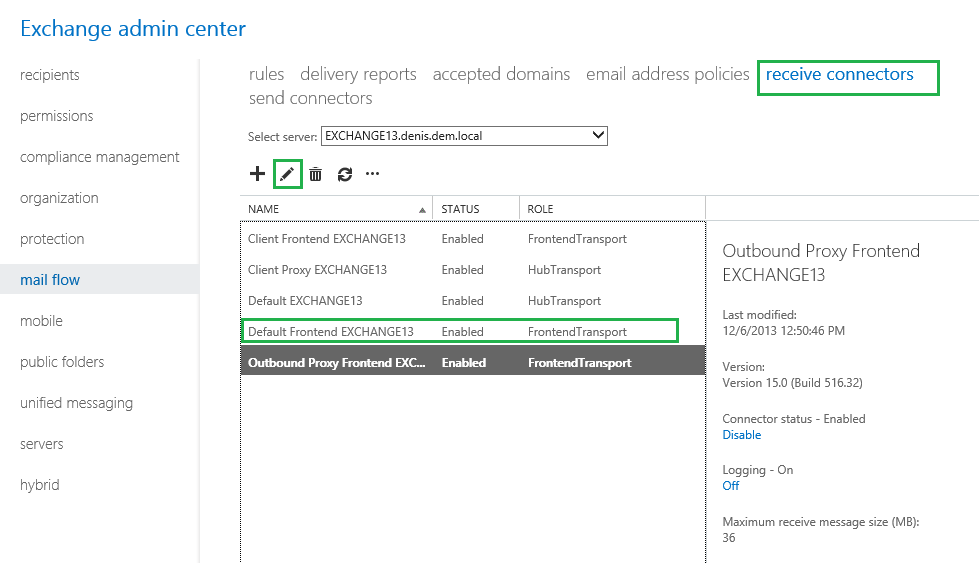
Begin with setting up Exchange Server Receive Connector:
If this script returns #True - it worked just fine.
If it returned "#False" - you will need to check SharePoint ULS in order to find what happened exactly.
- Open Exchange admin center (https://localhost/ecp) site;
- Mail flow --> receive connectors:
- Select Default Frontend Connector and edit it
- In security section, make sure "Anonymous users" are allowed:
You can test outgoing email via PowerShell with the following script:
Add-PSSnapin Microsoft.sharePoint.powershell
$Dictionary = new-object System.collections.specialized.stringdictionary
$Dictionary.add("to","TestUser@denis")
$Dictionary.add("from","TestUser@denis")
$Dictionary.add("Subject","Testing email")
$Web = get-spweb "http://localhost"
$Body = "Sending it from PowerShell"
[Microsoft.SharePoint.Utilities.SPUtility]::SendEmail($Web,$Dictionary,$Body)
If this script returns #True - it worked just fine.
If it returned "#False" - you will need to check SharePoint ULS in order to find what happened exactly.
Possible problem with while testing outgoing email: 451 4.7.0 Temporary server error. Please try again later. PRX2":
Solution: make sure you've got only one DNS for your network adapter on your Exchange Server. Make sure you are using address of your DNS server of your local domain. Do not include any other external DNS servers.
- Make sure that IPv6 is enabled on Exchange server. This is important when you are trying to connect Outlook to Exchange Server:
- Add host file entries on your SharePoint server that target Exchange server you receive "could not resolve domain name" error:
After all pain - success!
20 Nov 2013
Create Virtual Machine with Preinstalled SharePoint 2010/2013 Development Environment.
Here are the steps you should follow in order to create a preinstalled environment on a virtual machine:
- Install Windows Server 2008 R2/Windows Server 2012
- Install SharePoint 2013/2010 with all updates and do not run SharePoint Configuration Wizard
- You can install Visual Studio
- You can install Microsoft Office
- Do not install SQL Server because it can't be sysprepped.
- Do not enter any domains. Just because it's useless and I haven't checked whether it works or not.
- run C:\Windows\System32\Sysprep\Sysprep.exe
- Make sure you've checked "Generalize" option:
- Backup your virtual machine for later reuse
After you run your virtual environment you will need to:
- Install Domain controller role if it's a standalone Development environment.
- Join a domain (in case of SharePoint 2013)
- Install SQL Server (optional)
- Run SharePoint Configuration Wizard
Conclusion:
There is only one mandatory step (Run SharePoint Configuration Wizard) you will need to do on your sysprepped virtual machine. Very convenient.
9 Nov 2013
How to Create a Site Collection Inside a Given Database without PowerShell?
- In Central Administration go to Manage content databases
- For each database set Maximum Number of Site Collections te be equal to Current Number of Site Collections.
- Make sure your desired Database still didn't reach the limit of site collections number
- Create your new site collection as usual
- Return all Database settings back to where there were.
2 Aug 2013
Download and Install SharePoint 2013 Prerequisites on Windows Server 2012
These PowerShell scripts will automate downloading and installing the SharePoint 2013 Prerequisites on Windows Server 2012. The scripts will assist those who need to install SharePoint 2013 'offline' or wish to manually install its Prerequisites on Windows Server 2012.
Here is the link
Here is the link
Detect installed SharePoint 2010 or 2013 products using PowerShell
This PowerShell function returns a hash table to the pipeline containing SharePoint 2010 or 2013 products and the SharePoint Build Version installed on your server.
Here is the link.
Here is the link.
25 Jun 2013
Failed to create term set: A default managed metadata service connection hasn't been specified.
Here is a problem that might occur when dealing with Managed Metadata Service when trying to set up a Taxonomy-based navigation:
To fix this problem go to Central Administration, select your Managed Metadata Service (the second one on the screenshot) and make sure "This service application is the defaul storage location for column specifit term sets" is selected:
Subscribe to:
Posts (Atom)


