Total Pageviews

Showing posts with label Troubleshooting. Show all posts

27 Jun 2018

Maintenance Mode in SharePoint Online and Modern pages

Turns out, if you append ?maintenancemode=true of your SharePoint page you will see a special maintenance view:


On your page, you will see a summary of data from the Manifest and Data tabs. The summary information includes:
Alias
The name of the web part
Id
The unique ID of the web part
Instance Id
The ID of a specific instance of a web part (that is, if you have two more of the same web parts on a page, they will each have the same web part ID, but a different instance ID.
IsInternal
Indicates whether the web part was made by Microsoft or a third party. If True, it is made by Microsoft. If False, it is made by a third party.
Version
The version number of the web part.
Environment
Environment: Indicates the SharePoint environment in use.
  • 0 = Test environment
  • 1 = Local Workbench
  • 2 = SharePoint
  • 3 = Classic SharePoint
UserAgent
A string that contains information about the device and software in use (such as browser type and version).


Microsoft article "Open and use the web part maintenance page"

6 Dec 2013

Setting up Exchange 2013 for SharePoint 2013 Development Environment. Outbound email

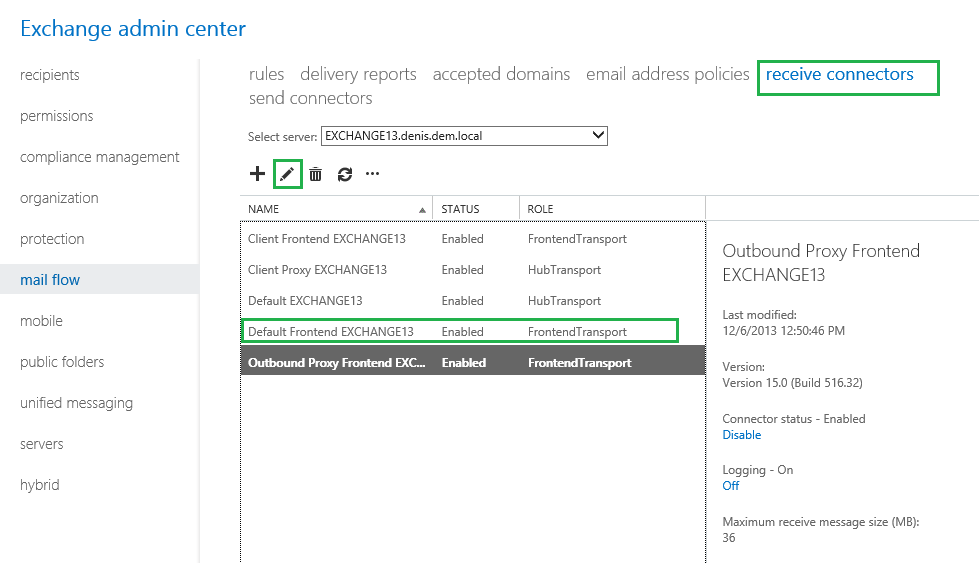
Begin with setting up Exchange Server Receive Connector:
    • Open Exchange admin center (https://localhost/ecp) site;
    • Mail flow --> receive connectors:
    • Select Default Frontend Connector and edit it


    • In security section, make sure "Anonymous users" are allowed:

You can test outgoing email via PowerShell with the following script:
Add-PSSnapin Microsoft.sharePoint.powershell
$Dictionary = new-object System.collections.specialized.stringdictionary
$Dictionary.add("to","TestUser@denis")
$Dictionary.add("from","TestUser@denis")
$Dictionary.add("Subject","Testing email")
$Web = get-spweb "http://localhost"
$Body = "Sending it from PowerShell"
[Microsoft.SharePoint.Utilities.SPUtility]::SendEmail($Web,$Dictionary,$Body)

If this script returns #True - it worked just fine.
If it returned "#False" - you will need to check SharePoint ULS in order to find what happened exactly.

Possible problem with while testing outgoing email: 451 4.7.0 Temporary server error. Please try again later. PRX2":
Solution: make sure you've got only one DNS for your network adapter on your Exchange Server. Make sure you are using address of your DNS server of your local domain. Do not include any other external DNS servers.


Here are others things to consider:
  1. Make sure that IPv6 is enabled on Exchange server. This is important when you are trying to connect Outlook to Exchange Server:
  2. Add host file entries on your SharePoint server that target Exchange server you receive "could not resolve domain name" error:
(SharePoint Server's hosts file)

After all pain - success!


16 Nov 2013

Debugging Native SharePoint DLLs with Reflector. "Cannot obtain value of local or argument as it is not available at this instruction pointer"

[original solution was found here]

This is a very reliable solution that helps me to inspect local variables while debugging OOB SharePoint DLL using Reflector:

1. Create a file with the following content:

[.NET Framework Debugging Control] 
GenerateTrackingInfo=1 
AllowOptimize=0

2. Save it to the GAC, within each folder of dll you want to disable its optimization, and name it with the name of the dll, with the extension ".ini".


3. Success!


Update:
It seems that I've forgotten another important thing that has to be enabled.

1. Go to the registry and in the path HKEY_LOCAL_MACHINE\SYSTEM\CurrentControlSet\Control\Session Manager\Environment\

2. Create a variable with a name COMPLUS_ZAPDISABLE and set it set it to 1:

6 Aug 2013

System.Diagnostics.Debugger.Break() for debugging Features

In certain cases, there is no easy way to debug FeatureActivating or FeatureDeactivating methods either because there is no UI process to attach to or you are deploying the project from Visual Studio. For example, If you set a breakpoint inside the asynchronous FeatureActivating method - it will not hit during execution unless you are somehow attached to the correct process.

So, for debugging purposes, you can include System.Diagnostics.Debugger.Break();  inside the FeatureActivating method:

        public override void FeatureActivating(SPFeatureReceiverProperties properties)
        {
             System.Diagnostics.Debugger.Break();       

             // Feature code...
        }

At the time System.Diagnostics.Debugger.Break() is executed you System will show you a dialog box with an exception, prompting you to select a desired way to debug "a problem". It's not a problem of course :)  Then you have to select your Visual Studio SharePoint project which should be already open. After a few moments you will be redirected to the System.Diagnostics.Debugger.Break(); and you will see that your lovely breakpoint actually worked fine. Now you can go on and continue debugging.

5 Aug 2013

ULS, SharePoint Foundation Monitoring High Leaving Monitored Scope (EnsureListItemsData). Execution Time=XXX

Ever wondered what this message meant in ULS?

First of all, there is a public SPMonitoredScope class that allows us to discover  performance bottlenecks.
One of the implementations of this method looks like following:
public SPMonitoredScope(string name, uint maximumExecutionTime, params ISPScopedPerformanceMonitor[] monitors)

If maximumExecutionTime parameter is set to 250, a debug message will be written to ULS when a certain piece of code runs more than 250 milliseconds.


When SPList.GetItems method is executed you don't immediately get data from DataBase because this method is differed until the actual data is requested somewhere. So, when you try to debug performance bottlenecks you might find that this method executes pretty fast. However, when, later you try to request SPListItemCollection the internal EnsureListItemsData method is run. This exact method will ensure that the actual data is retrieved. This is where it might take quite some time to get your List items. Let's see at the internal implementation of the EnsureListItemsData method:

        protected void EnsureListItemsData()
        {      
                using (new SPMonitoredScope("EnsureListItemsData", 250, new ISPScopedPerformanceMonitor[] { new SPSqlQueryCounter(1) }))
                {
                   // Code that fetches data from the Database
                }
        }

As you can see, maximumExecutionTime parameter is set to 250 milliseconds.When the process of getting List data from SPList gets longer that this time you will see this message:

ULS, SharePoint Foundation Monitoring  High Leaving Monitored Scope (EnsureListItemsData). Execution Time=XXX

I hope it sheds some light on this mysterious ULS message.

25 Jun 2013

Failed to create term set: A default managed metadata service connection hasn't been specified.

Here is a problem that might occur when dealing with Managed Metadata Service when trying to set up a Taxonomy-based navigation:
To fix this problem go to Central Administration, select your Managed Metadata Service (the second one on the screenshot) and make sure "This service application is the defaul storage location for column specifit term sets" is selected:


20 Feb 2013

Stopping Credentials Dialog from Popping Up

  • Add your sire to Local Intranet to stop it from asking for credentials. Note that if your site is in Trusted zone and not in Local Intranet it will still ask you to provide a password!
  • Add your  site to Trusted Zone to stop pop-up window from appearing when opening MS office documents from lybraries. It will actually stop DispEx Function from running when clicking on the document

Conclusion: add your SharePoint site either to Local Intranet or Trusted zone.
 

DispEx Function does not run

Moving the site to trusted sites stops the JavaScript function DispEx from running.

12 Feb 2013

SharePoint Designer 2010 – The server could not complete your request. The content type of the response is

This is mostly happening due to the use of SPConfigModification.

Solution:
1. Open web.config
2. Search for section <system.serviceModel>
3. add the following tag to the section:
<serviceHostingEnvironment aspNetCompatibilityEnabled="true" />
4. done!

Original solution was found here


13 Dec 2012

Error : Object reference not set to an instance of an object on feature deployment

At the beginning of your FeatureActivated method, put this line of code :
System.Diagnostics.Debugger.Break();

Then, try to activate the feature. This will popup an "exception" window that let you to attach the debugger of your choice.
After attaching, your code will be pause at this line, and you will be able to walk into your code to find the issue.

21 Jul 2012

Experimenting with Large SharePoint Lists, Indexed Columns and View Threshold

Hey there, folks! I'd like to share my own findings concerning large SharePoint 2010 lists. Of course there are lots of posts and articles that tell us something about this topic, but I hope to contribute something anyway. Hold on to the handles! Let's begin!

We are given
Custom SharePoint List with 5000 items in it.
List View Threshold: 2000
List View Threshold for Auditors and Administrators: 2000
Object Model Override: true
View page size: 30
List Item Count: 5000
Important: all tests run under a non-administrative login 

Working With Standard SharePoint Web Part via GUI

Let's try to sort our list by an indexed Title column by clicking on the header. Remember, we have 5000 items an Threshold is just 2000.


The result was a bit shocking. This is how the standard ListViewWebPart can sort indexed columns in a large list:

It simply can't! It does not use index while getting items sorted by an indexed column. How do we know that? Check out this article. If we sort by an indexed column, there is no trace of "NameValuePair" database table being used. We can easily check it by using standard Developer Dashboard. This is how a query that uses index should look like:
However, when sorting using standard SharePoint Views NameValuePair table is not used - hence I doubt that indexed columns speed up sorting in any way.

This is how the query looks when we try to sort by an indexed column:


For the test's sake let's try to create a view with sorting by an indexed column. Maybe it will work?


No, it won't. The result is the same. If you have more items in the list than a threshold - you will get the same problem. Standard WebPart does not even consider your index:


Now I want to check how filtering works. Again, this is standard ListViewWebPart. I'm trying to filter by an indexed column:

In this case I can't use filter because there are more filtering options than the threshold allows us to process.

Now I'm going to modify the list view to see if it allows me to use filtering there. After all I have only 30 items on my page. It might work.Notice (Not Indexed) hint next to the "contains" options:


The result is:

Well, it warned us. (Not Indexed), remember? So it was expected already. But what about other options? This time we choose "begins with" option:


This time we expect it to work, but here we go again:


The problem was that there were still 5000 rows to be processed after applying the filter. Let's try to narrow it down:


Success. When number of total filtered items is fewer than a threshold it's going to work just fine:


Same rule applies to any other filtering option except of "contains" one.

ID Column Works Almost Like an Indexed Field, But It's Slightly Better

You can sort by ID column even when there are more items in the list than threshold allows. Unlike other indexed columns ID column will never give you "exceeds the list view threshold" message on the standard ListView webpart unless your page size is bigger than this threshold.

Enforcing Unique Values upon Columns Does Not Make Them Sortable in Large Lists

Maybe we can sort by ID in large lists because the ID column contains unique values? Let's check if uniqueness helps any column to act as an ID column. We've created a Number column that enforced unique values:


Now let's try to sort by this unique column:


The result is...


So, making a column unique does not make it act as an ID column. This is why "ID column is a bit better than others".

Creating and Deleting Index Happens Almost Instantly

Yes, as simply as that. You don't have to wait for a timer job or something like that to run before you get your index created or removed. In fact, index rebuilds every time you add, delete or edit any item in the list.

Daily Time Window for Large Queries 

When setting "Daily Time Window for Large Queries" or  a "happy hour" in Central Administration users will receive additional info when they hit the threshold. This info simply tells users at what time it is allowed to exceed the view threshold.

Threshold, Indexed Columns and Object Model

SPQuery.RowLimit Does Not Help?

Right, now to the code. We create a guinea-pig-visual-web-part for the tests. Let's say you have your beautiful list with more than 5000 items in it with Title being an indexed column. We write an SPQuery to get 100 items. So we write something like this.


    SPList list = web.Lists["UniqueList"];
    SPQuery query = new SPQuery();
    query.Query = "<Where><Contains><FieldRef Name=\"Title\"/><Value Type=\"Text\">Title</Value></Contains></Where>";
    query.RowLimit = 100;
    SPListItemCollection items =  list.GetItems(query);

In this case, even though we have SPQuery.RowLimit set to 100 - there are 5000 items that fulfil condition of the "Where" clause. In other words, even though we use NameValuePair talbe - there are still 5000 items to be processed in it. This is an interesting thing to remember. So this is what we get in this case:


But let's try to narrow the filter down:

    SPList list = web.Lists["UniqueList"];
    SPQuery query = new SPQuery();
    query.Query = "<Where><Contains><FieldRef Name=\"Title\"/><Value Type=\"Text\">Title_18</Value></Contains></Where>";
    query.RowLimit = 100;
    SPListItemCollection items =  list.GetItems(query);

Now it's just worked fine. We didn't hit the threshold because we didn't have to process all 5000 items, but instead processed about 110 items using index table. Developer Dashboard proves this fact:

Let's try to delete our index and see what happens.

Good! Because we have no index to use - we were forced to process all 5000 items again. And of course, this operation was blocked.

But I Am Using RowLimit! Why Do I have to Process 5000 Items?

You don't have to. I've modified the code snippet so that it looks like that:

  SPList list = web.Lists["UniqueList"];
  SPQuery query = new SPQuery{RowLimit=100};
  query.Query = "<Where><Contains><FieldRef Name=\"Title\"/><Value Type=\"Text\">UniqueTitle</Value></Contains></Where>"
  + ContentIterator.ItemEnumerationOrderByNVPField;


ItemEnumerationOrderByNVPField is a property that returns "<OrderBy UseIndexForOrderBy='TRUE' Override='TRUE' />" string. This OrderBy overrides any other possible OrderBy's in your SPQuery and makes sure one of the indexed columns is used. I'm not really sure what exactly indexed columns will be sorted when I have several of them.


This technique of using ItemEnumerationOrderByNVPField only helps when:

  • Using indexed columns in the Where clause
  • RowLimit (or number of items returned) is less than the threshold
  • You don't use sorting in Where clause. If you do - it will be overridden anyway (very inconvenient limitation) 
  • You don't mind your items being sorted by indexed columns. 

There is also ContentIterator.ItemEnumerationOrderByID property that returns the string "<OrderBy Override='TRUE'><FieldRef Name='ID' /></OrderBy>". Let's try using this one. Maybe it helps if we don't want the items to be sorted when returned:

  SPList list = web.Lists["UniqueList"];
  SPQuery query = new SPQuery(RowLimit=100};
  query.Query = "<Where><Contains><FieldRef Name=\"Title\"/><Value Type=\"Text\">UniqueTitle</Value></Contains></Where>"
  + ContentIterator.ItemEnumerationOrderByID;

The result is:

What if I want some control over columns that are being sorted? 

Warning: Don't use this snippet in your projects, it won't work as you expect it to:

  SPList list = web.Lists["UniqueList"];
  SPQuery query = new SPQuery{RowLimit=100};
  query.Query = "<Where><Contains><FieldRef Name=\"Title\"/><Value Type=\"Text\">UniqueTitle</Value></Contains></Where>"
  + "<OrderBy UseIndexForOrderBy='TRUE' Override='TRUE'><FieldRef Name='Title' Ascending='FALSE' /></OrderBy>";
  SPListItemCollection items = list.GetItems(query);

I was just curious what the result would be in this case. Unfortunately it said that I've hit the threshold yet again. Oh well...

ContentIterator.ProcessListItems Method (Microsoft SharePoint Server 2010 only)

If you can't narrow down the number of items to be processed by using filter - one of the right ways to avoid hitting threshold is by using ContentIterator.ProcessListItems


    SPList list = web.Lists["UniqueList"];
    SPQuery query = new SPQuery{RowLimit=5000};
    query.Query = "<Where><Contains><FieldRef Name=\"Title\"/><Value Type=\"Text\">UniqueTitle</Value></Contains></Where>"
     + ContentIterator.ItemEnumerationOrderByNVPField; // this is a Must

   ContentIterator contentIterator = new ContentIterator();
   List<SPListItem> items = new List<SPListItem>();
   contentIterator.ProcessListItems(list, query,
       delegate(SPListItem item)
       {
           items.Add(item); // not sure if it's the most efficient way!
       },                   
       delegate(SPListItem item, Exception eItemFailed)
       {
           return true;
       }
   );

Object Model Override, SPList.EnableThrottling and SPQueryThrottleOption.Override methods

This is simply a list of ways to bypass threshold.
I don't want to repeat that was already written in a good article "Working with Large Lists in SharePoint 2010 - List Throttling" by Steve Peschka, so, please, have a look.

Conclusion


  • Combine Filtering and Sorting to avoid hitting threshold. Narrow down the number of rows to be processed.
  • If you have access to SharePoint Server 2010 Edition consider using ContentIterator methods.
  • Read additional info from the sites listed below


Additional articles:
Writing Efficient Code in SharePoint Server
2010 Large Lists Documentation: white papers and blog posts
Large List Performance (very nice article)