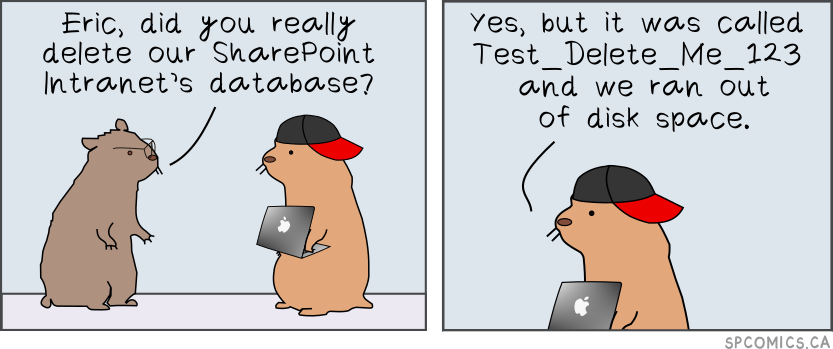
I have finally finished the website for hosting my comic strips.
Total Pageviews
Showing posts with label Productivity. Show all posts
31 Dec 2018
22 Oct 2016
The Best Way to Develop SharePoint Client Side Applications
Please, read these articles by Andrew Koltyakov.
He explains in great detail how to properly develop client side solutions using tools like node, gulp, Visual Studio Code with SharePoint
2 Jan 2014
Generating Lots of List Items and Docuiments for Testing Purposes
I've uploaded a first version of List Manager for SharePoint utility on CodePlex.
It saves me a lot of time on generating list items for testing puroposes. It can also fill most of the field types including Multichoice, Lookups and Taxonomy metadata fields. It can generate text and word documents in case you need it.
This utility does not use bulk operations yet, so it might be a bit slow when generating thouthands of items, but it does its job in the end.
Here is a short demo:
It saves me a lot of time on generating list items for testing puroposes. It can also fill most of the field types including Multichoice, Lookups and Taxonomy metadata fields. It can generate text and word documents in case you need it.
This utility does not use bulk operations yet, so it might be a bit slow when generating thouthands of items, but it does its job in the end.
Here is a short demo:
SPRemoteAPIExplorer by Steve Curran MVP
A Visual Studio server explorer extension to provide the ability to explore and discover SharePoint 2013 remote API capabilities in REST and CSOM(Javascript, .Net and Silverlight). This extension is very useful when working with the SharePoint 2013 REST api. It lists all the types, methods, parameters and properties available to be called remotely. Metadata for types, methods and properties lists whether it can be used by CSOM, REST, JSOM and .Net remote api. Other information available in the property grid includes, OData type, whether to call the method using a querystring, path or body. Requires Microsoft SharePoint 2013 installed locally and the Office Developer Tools for Visual Studio 2012.
20 Nov 2013
Create Virtual Machine with Preinstalled SharePoint 2010/2013 Development Environment.
Here are the steps you should follow in order to create a preinstalled environment on a virtual machine:
- Install Windows Server 2008 R2/Windows Server 2012
- Install SharePoint 2013/2010 with all updates and do not run SharePoint Configuration Wizard
- You can install Visual Studio
- You can install Microsoft Office
- Do not install SQL Server because it can't be sysprepped.
- Do not enter any domains. Just because it's useless and I haven't checked whether it works or not.
- run C:\Windows\System32\Sysprep\Sysprep.exe
- Make sure you've checked "Generalize" option:
- Backup your virtual machine for later reuse
After you run your virtual environment you will need to:
- Install Domain controller role if it's a standalone Development environment.
- Join a domain (in case of SharePoint 2013)
- Install SQL Server (optional)
- Run SharePoint Configuration Wizard
Conclusion:
There is only one mandatory step (Run SharePoint Configuration Wizard) you will need to do on your sysprepped virtual machine. Very convenient.
11 Jan 2013
Adding a warm-up step to your SharePoint project deploy action
I've recently found a very useful blog post on how to improve SharePoint Deployment experience in Visual Studio.
Check this out!
Check this out!
Subscribe to:
Posts (Atom)