I've stumbled across an interesting Chrome Extension Page Diagnostics for SharePoint Chrome extension. It shows some useful info on the page performance.
Microsoft Article "Use the Page Diagnostics tool for SharePoint Online"
In my case SPRequestDuration and SPIISLatency were not displayed, but you can get these values by simply pressing F12 and typing g_iisLatency and/or g_duration in the console:
g_iisLatency - Shows network latency between the client browser and the IIS server
g_duration - Shows the time it took the page to be returned to the client browser
Update:
I've found out that g_iisLatency and g_duration only show up in the classic pages.
Total Pageviews
27 Jun 2018
23 Jun 2018
Creating Forms for SharePoint Online using PowerApps, AngularJs, React or Nintex
Here my short presentation on the best options of creating forms in office 365, SharePoint Online
Disclaimer. I've made a couple of mistakes:
1. There is no mobile app for Microsoft Forms. But it MS Forms links open fine in any mobile browser. I guess there is no point in having the app in the first place.
2. The last app I've demonstrated was written using React+TypeScript, not AngularJs.
Disclaimer. I've made a couple of mistakes:
1. There is no mobile app for Microsoft Forms. But it MS Forms links open fine in any mobile browser. I guess there is no point in having the app in the first place.
2. The last app I've demonstrated was written using React+TypeScript, not AngularJs.
22 Jun 2018
Determine if SharePoint has enough memory allocated to the distributed cache service
After reading half a dozen articles explaining how to eyeball and calculate the distributed cache size I was wondering: Why no one suggests just to check the current consumption before changing anything? Here is a scary thought: What if we have a ton of memory and we don't need to add any more? I know, this sounds revolutionary.
This is a quick script that I've slapped together to show 1) maximum allocated memory for the Distributed cache. 2) current usage for all AppFabric caches on the current server.
So, before bumping the Distributed cache, test the current consumption with the script below.
Here is the sample result:
This is a quick script that I've slapped together to show 1) maximum allocated memory for the Distributed cache. 2) current usage for all AppFabric caches on the current server.
So, before bumping the Distributed cache, test the current consumption with the script below.
###### DETERMINE IF YOU HAVE ENOUGH MEMORY ALLOCATED TO DISTRIBUTED CACHE:
Add-PSSnapin Microsoft.SharePoint.Powershell
Use-CacheCluster
$hostname = hostname
$configuration = Get-AFCacheHostConfiguration -ComputerName $hostname -CachePort "22233"
Write-host Maximum Size: $($configuration.size)MB HostName: $($configuration.HostName) -ForegroundColor Blue
# Get-AFCache | % {Get-AFCacheConfiguration -CacheName $_.CacheName}
$caches = Get-AFCache | % {Get-AFCacheConfiguration -CacheName $_.CacheName}
foreach($cache in $caches){
$stats = Get-AFCacheStatistics $cache.CacheName
Write-host $cache.CacheName -ForegroundColor Green Cache.
Write-host Usage: $($stats.Size / 1MB) MB
Write-host
}
###### DETERMINE IF YOU HAVE ENOUGH MEMORY ALLOCATED TO DISTRIBUTED CACHE END
Here is the sample result:
16 Nov 2017
20 Feb 2017
Hide .js and .js.map files when using TypeScript in Visual Studio Code
TypeScript is awesome, but what if I don’t want to see extra .js and .js.map files everywhere that are polluting your file explorer in Visual Studio Code?
Here is an easy solution:
- Open user settings:
- Add "files.exclude" property to the user settings or to the workspace settings:"files.exclude":
{
"**/*.js*": {"when": "$(basename).ts"},
"**/*.js.map": true
}
Done:
AngularJs + TypeScript with SharePoint
Getting intellisense in Visual Studio Code for AngularJs in TypeScript is not as straightforward as one would expect. Follow these steps below to get it working
Open Visual Studio Code
Press CTRL+` and run these commands:
tsc –init npm install typings –global typings install dt~jquery --global --save

typings install dt~angular

Now, if you run tsc compiler, your will get errors like so:
in order to fix it:
- create a global.d.ts file inside typings folder. It will be a new entry point for your TypeScript
- add import * as angular from "angular" as a first line
- add /// <reference path="index.d.ts" /> following that:
Modify tsconfig.json include "files" property to reference the new global.d.ts file: :
{
"compilerOptions": {
"target": "es5",
"sourceMap": true
},
"files": [
"typings/global.d.ts"
]
}
Let TypeScript compiler know which folder contains your .ts code by adding “include” property to the tsconfig.json file:
"include": ["src/*"]where src/ is your source code folder
tsc --watch
Now you get angular and jQuery intellisense in TypeScript:
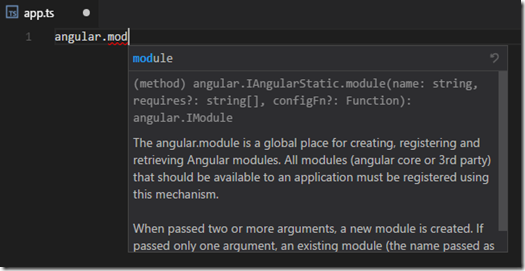
Well. it’s not really SharePoint specific, but it’s nice to know SharePoint developers can use the same steps.
If you are searching for a quick start with SharePoint and modern tools have a look at these articles by Andrew Koltyakov.
2 Nov 2016
Find Configuration Database Connection string in the Registry
SharePoint 2010:
HKEY_LOCAL_MACHINE\SOFTWARE\Microsoft\Shared Tools\Web Server Extensions\14.0\Secure\ConfigDb
SharePoint 2013:
HKEY_LOCAL_MACHINE\SOFTWARE\Microsoft\Shared Tools\Web Server Extensions\15.0\Secure\ConfigDb
Subscribe to:
Posts (Atom)


