Total Pageviews

1 Jul 2015

SharePoint Ports

Here is a quick link with most of the ports that might be used by SharePoint:

http://www.sharepointdiary.com/2010/04/ports-used-by-sharepoint.html

SharePoint has to communicate with other servers such as Active Directory, DNS etc which require other ports, they are as follows:
  1.     AD Authentication: TCP:445 Kerberos :TCP:88
  2.     LDAP:  LDAP:389 and LDAPS:636
  3.     DNS: TCP:53
  4.     SMTP: TCP:25
  5.     SQL Server: TCP:1443 (or Custom Ports)
  6.     Server Message Block (SMB) TCP:445 or TCP:137,138,139 (over NetBIOS).
    • is used extensively for search and query operations with SharePoint
  7.     HTTP/HTTPS:  TCP:80 or TCP:443 (SSL)
  8.     Office Server Web services /Shared Service Provider web service calls: 56737 and 56738 (SSL).
  9.     Open TCP port 135 plus ports in the range that you specify when you configure static RPC (only if using SSO).
  10. Service Applications use: 32843,32844 & 32845 (TCP EndPoint)
  11. User code Service: 32846
  12. User Profile Sync: 5275

Credits to Salaudeen Rajack

23 Apr 2015

Override Keyboard Keys in SharePoint

Here is a simple way to override keyboard keys in SharePoint:


 overrideKeys = function () {  
 /*This is a standard SharePoint Function, that listens to keyboard events*/  
   window.OnListViewKeyDown = function OnListViewKeyDown(a, b) {  
     var d = GetListContextFromContextNumber(String(b));  
     if (d == null || d.inGridMode) return;  
     var e = a.keyCode,  
       c = a.shiftKey || a.ctrlKey;  
     if (IsCallOutOn()) return;  
           console.log(e);  
     switch (e) {  
       case Sys.UI.Key.del:  
         //Oveeride Delete Button  
         break;  
       case Sys.UI.Key.up:  
         SelectNextRow(b, -1, c, a);  
         break;  
       case Sys.UI.Key.down:  
         SelectNextRow(b, 1, c, a);  
         break;  
       case Sys.UI.Key.enter:  
         if (IsEventTargetAnchor(a)) return;  
         if (a.target != null && !IsStrNullOrEmpty(a.target.className) && a.target.className.indexOf("ms-lstItmLinkAnchor") >= 0) OpenCallOutOrECB(b, a);  
         else ListItem_Open(b, a)  
           case Sys.UI.Key.esc:  
                 //override Esc  
                 brea;  
     }  
   }  
 };  
 $(function () {  
   setTimeout(overrideKeys, 600);  
 });  
You can have a look at the full list of Sys.UI.Keys here

17 Mar 2015

Hide SharePoint 2013 Controls on Full Screen Mode

How do I hide or Show custom controls in full scree mode?


When you click on "full screen mode" button ms-fullscreenmode  class is added to the <Body> tag:


Solution:


A sample snippet of CSS that will hide your controls in full screen

/*hide controlID div only when full screen mode is enabled/
.ms-fullscreenmode #controlID {
 display:none;
}


#controlID - id of an HTML element that should be hidden when "full screen" is clicked

12 May 2014

Create Professional Looking favicon.ico and .ico for .exe Programs


Let's start with this:


1. If you already have a corportate big  logo - open it in GIMP and go to : Layer-->Transparancy-->Color to Alpha and press OK:
2.Export the result as a PNG

3. Then go to the xiconeditor.com web site and import your image:
4.Select all 4 sizes, press OK and then click on Export.
5. Done! We've just created an awesome professional lookin favicon.ico file

This is how it will look in real life:


This file can also be used for .exe files. 

The resulting .ICO file will contain 4 different sizes in it. Each size will be used by a browser or Windows 7/8 OS to depending on the context.


30 Mar 2014

Two-way Synchronization between SharePoint List and Excel Table

Hey there folks! There is a feature that existed since SharePoint 2003 and not many people know about. This feature allows you to publish a table to a SharePoint list right from Excel. After that you can two-way sync any changes.


  • First of all download an add-in for Excel. Yes, it says "Excel 2007", but it will work for all versions of Excel including 2013.

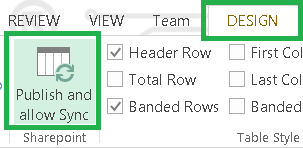
  • After installing this add-in, In excel, you will find a new button:

Publish Sync button will appear only after installing Add-in for Excel 2007

  • In order to enable two-way sync, select a table, on the INSERT tab select TABLE and press OK:


  • The, in DESIGN tab, press Publish and allow Sync.


  • In a dialog box, enter a url of the SharePoin(2003/2007/2010/2013)  web site, specify a list name that will be created and press Publish.


  • The list will be created:

    This list was created right from Excel
    You can edit a newly created SharePoint list and then, in Excel, after selecting your table, in the context menu: Table--> Synchronize with SharePoint. And viola! The changes from SharePoint will appear in the Excel table:
    Select your Excel table and Synchronize with SharePoint in order to see the changes made in SharePoint or to send changes made from Excel to SharePoint list


    Watch a video demo from SharePoint Conference 2014 starting from 32:00 to 39:00. (credits to Dux Raymond Sy)
    Beyond Deployment: How IT Can Inspire, Motivate And Drive Sustainable Adoption?

    See also:


    18 Jan 2014

    Check if a Field was Changed Inside ItemUpdated Handler of a List EventReceiver

    I think, I found the easiest way to check if a particular field was changed inside ItemUpdated handler. Here is what you should do:
    1. Add a new hidden field to the list.
    2. Register a new EventReceiver for ItemUpdating. It will save previous field values.
    3. In ItemUpdating save a field value from before properties of the field to afterProperties of the hidden field.
    4. In ItemUpdated compare afterProperties of the wanted field with the after properties of the hiddenField
    2. Registering event receivers inside a feature receiver with the web scope:


     private static void AddEventReceivers(SPFeatureReceiverProperties properties)
            {
                SPWeb web = (SPWeb) properties.Feature.Parent;
                string assembly = Assembly.GetExecutingAssembly().FullName;
    
                web.AllowUnsafeUpdates = true;
    
                SPList list = GetTheListSomehow();
                SPEventReceiverDefinition ERDefinitionUpdated = list.EventReceivers.Add();
                ERDefinitionUpdated.Assembly = assembly;
                ERDefinitionUpdated.Class = typeof(Event_Receiver_Class).FullName;
                ERDefinitionUpdated.Type = SPEventReceiverType.ItemUpdated;
                ERDefinitionUpdated.Name = "ClipsEventReceiverItemUpdated";
                ERDefinitionUpdated.Update();
    
                SPEventReceiverDefinition ERDefinitionUpdating = list.EventReceivers.Add();
                ERDefinitionUpdating.Assembly = assembly;
                ERDefinitionUpdating.Class = typeof(Event_Receiver_Class).FullName;
                ERDefinitionUpdating.Type = SPEventReceiverType.ItemUpdating;
                ERDefinitionUpdating.Name = "ClipsEventReceiverItemUpdating";
                ERDefinitionUpdating.Update();
    }


    3. ItemUpdating EventReceiver:

    public override void ItemUpdating(SPItemEventProperties properties)
    {
        //warning: you should check if the field is not null
        properties.AfterProperties["hiddenFieldName"] = properties.ListItem["fieldName"];
    }
    warning: do not try to save values straight the hidden field. You should use afterProperties instead like is shown above.

    4. ItemUpdated EventReceiver:

    public override void ItemUpdated(SPItemEventProperties properties)
    {
       string oldfieldValue = properties.ListItem["hiddenField"];
    
        //simplified example. you should check for nulls and maybe use a better way of comparing field values
       if (String.Equals(oldfieldValue, properties.AfterProperties["fieldName"]))
       {
           return;
       }
       //some code...
    }


    15 Jan 2014

    Send Email with HTML Link to the Current User with SPUtility.SendEmail


    Code:
            private void SendEmailWithReportLink(SPWeb web)
            {
                string bodyText = "To see the report <a href='" + "/_layouts/report.aspx" + "'>click here</a>. <br>";
                Boolean emailSent = true;
                SPSecurity.RunWithElevatedPrivileges(delegate() { 
                    emailSent = SPUtility.SendEmail(web, true,false, SPContext.Current.Web.CurrentUser.Email,
                        "Report «Quality Control Summary» is ready", bodyText, true);
                
                });
    
                if (emailSent)
                {
                   //TODO: log message
                }
                else
                {
                    //TODO: log error
                }
            }