 overrideKeys = function () {
 /*This is a standard SharePoint Function, that listens to keyboard events*/
   window.OnListViewKeyDown = function OnListViewKeyDown(a, b) {
     var d = GetListContextFromContextNumber(String(b));
     if (d == null || d.inGridMode) return;
     var e = a.keyCode,
       c = a.shiftKey || a.ctrlKey;
     if (IsCallOutOn()) return;
           console.log(e);
     switch (e) {
       case Sys.UI.Key.del:
         //Oveeride Delete Button
         break;
       case Sys.UI.Key.up:
         SelectNextRow(b, -1, c, a);
         break;
       case Sys.UI.Key.down:
         SelectNextRow(b, 1, c, a);
         break;
       case Sys.UI.Key.enter:
         if (IsEventTargetAnchor(a)) return;
         if (a.target != null && !IsStrNullOrEmpty(a.target.className) && a.target.className.indexOf("ms-lstItmLinkAnchor") >= 0) OpenCallOutOrECB(b, a);
         else ListItem_Open(b, a)
           case Sys.UI.Key.esc:
                 //override Esc
                 brea;
     }
   }
 };
 $(function () {
   setTimeout(overrideKeys, 600);
 });
23 Apr 2015
Override Keyboard Keys in SharePoint
Here is a simple way to override keyboard keys in SharePoint:

17 Mar 2015
Hide SharePoint 2013 Controls on Full Screen Mode
How do I hide or Show custom controls in full scree mode?


Solution:
When you click on "full screen mode" button ms-fullscreenmode class is added to the <Body> tag:
Solution:
A sample snippet of CSS that will hide your controls in full screen
/*hide controlID div only when full screen mode is enabled/
.ms-fullscreenmode #controlID {
display:none;
}
#controlID - id of an HTML element that should be hidden when "full screen" is clicked
#controlID - id of an HTML element that should be hidden when "full screen" is clicked
12 May 2014
Create Professional Looking favicon.ico and .ico for .exe Programs
Let's start with this:

1. If you already have a corportate big logo - open it in GIMP and go to : Layer-->Transparancy-->Color to Alpha and press OK:

2.Export the result as a PNG
3. Then go to the xiconeditor.com web site and import your image:

4.Select all 4 sizes, press OK and then click on Export.
5. Done! We've just created an awesome professional lookin favicon.ico file
This is how it will look in real life:

This file can also be used for .exe files.
The resulting .ICO file will contain 4 different sizes in it. Each size will be used by a browser or Windows 7/8 OS to depending on the context.
30 Mar 2014
Two-way Synchronization between SharePoint List and Excel Table
- First of all download an add-in for Excel. Yes, it says "Excel 2007", but it will work for all versions of Excel including 2013.

- After installing this add-in, In excel, you will find a new button:
 |
| Publish Sync button will appear only after installing Add-in for Excel 2007 |
- In order to enable two-way sync, select a table, on the INSERT tab select TABLE and press OK:

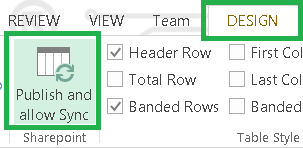
- The, in DESIGN tab, press Publish and allow Sync.

- In a dialog box, enter a url of the SharePoin(2003/2007/2010/2013) web site, specify a list name that will be created and press Publish.

- The list will be created:
 |
| This list was created right from Excel |
 |
| Select your Excel table and Synchronize with SharePoint in order to see the changes made in SharePoint or to send changes made from Excel to SharePoint list |
Watch a video demo from SharePoint Conference 2014 starting from 32:00 to 39:00. (credits to Dux Raymond Sy)
 |
| Beyond Deployment: How IT Can Inspire, Motivate And Drive Sustainable Adoption? |
See also:
18 Jan 2014
Check if a Field was Changed Inside ItemUpdated Handler of a List EventReceiver
I think, I found the easiest way to check if a particular field was changed inside ItemUpdated handler. Here is what you should do:
3. ItemUpdating EventReceiver:
warning: do not try to save values straight the hidden field. You should use afterProperties instead like is shown above.
4. ItemUpdated EventReceiver:
- Add a new hidden field to the list.
- Register a new EventReceiver for ItemUpdating. It will save previous field values.
- In ItemUpdating save a field value from before properties of the field to afterProperties of the hidden field.
- In ItemUpdated compare afterProperties of the wanted field with the after properties of the hiddenField
3. ItemUpdating EventReceiver:
4. ItemUpdated EventReceiver:
15 Jan 2014
10 Jan 2014
SharePoint 2013 Feature Comparison All in One (credits to Peter Ekerot)
Here is a link to the Excel file with the comprehensive comparison across different versions of SharePoint 2013

Subscribe to:
Posts (Atom)