
27 Dec 2013
19 Dec 2013
List of Useful SharePoint CSS Classes
When developing custom SharePoint solutions you can save a lot of time by taking advantage of the built-in CSS classes inside corev4.css or corev15.css files.
For instance: you can use ms-error class in order to make your label red.
You can also use these:
.s4-floatleft
.s4-hide
.s4-clust - hides the element for the print view.
Here is a good list of ready-to-use CSS classes:
http://sharepointexperience.com/csschart/csschart.html
Unfortunately, this link does not contain the whole list of useful classes, but it's a good start anyway.
For instance: you can use ms-error class in order to make your label red.
You can also use these:
.s4-floatleft
.s4-hide
.s4-clust - hides the element for the print view.
Here is a good list of ready-to-use CSS classes:
http://sharepointexperience.com/csschart/csschart.html
Unfortunately, this link does not contain the whole list of useful classes, but it's a good start anyway.
13 Dec 2013
Change "SharePoint" in ms-core-brandingtext
In case you were wondering how to change "SharePoint" text in the top left corner:

In SharePoint Management PowerShell:
$app = get-spwebApplication "http://mysite"
$app.SuiteBarBrandingElementHtml = "<div class='ms-core-brandingText'>Custom Brand</div>"
$app.Update()
Done!
6 Dec 2013
Setting up Exchange 2013 for SharePoint 2013 Development Environment. Outbound email
Begin with setting up Exchange Server Receive Connector:


If this script returns #True - it worked just fine.
If it returned "#False" - you will need to check SharePoint ULS in order to find what happened exactly.
- Open Exchange admin center (https://localhost/ecp) site;
- Mail flow --> receive connectors:
- Select Default Frontend Connector and edit it
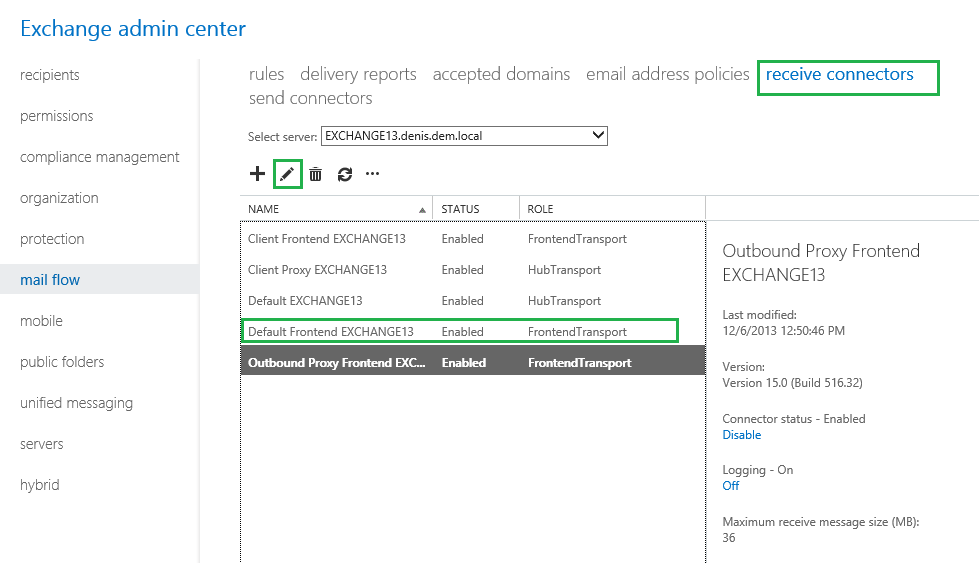
- In security section, make sure "Anonymous users" are allowed:

You can test outgoing email via PowerShell with the following script:
Add-PSSnapin Microsoft.sharePoint.powershell
$Dictionary = new-object System.collections.specialized.stringdictionary
$Dictionary.add("to","TestUser@denis")
$Dictionary.add("from","TestUser@denis")
$Dictionary.add("Subject","Testing email")
$Web = get-spweb "http://localhost"
$Body = "Sending it from PowerShell"
[Microsoft.SharePoint.Utilities.SPUtility]::SendEmail($Web,$Dictionary,$Body)
If this script returns #True - it worked just fine.
If it returned "#False" - you will need to check SharePoint ULS in order to find what happened exactly.
Possible problem with while testing outgoing email: 451 4.7.0 Temporary server error. Please try again later. PRX2":
 Solution: make sure you've got only one DNS for your network adapter on your Exchange Server. Make sure you are using address of your DNS server of your local domain. Do not include any other external DNS servers.


- Make sure that IPv6 is enabled on Exchange server. This is important when you are trying to connect Outlook to Exchange Server:
- Add host file entries on your SharePoint server that target Exchange server you receive "could not resolve domain name" error:


(SharePoint Server's hosts file)
After all pain - success!

20 Nov 2013
Create Virtual Machine with Preinstalled SharePoint 2010/2013 Development Environment.
Here are the steps you should follow in order to create a preinstalled environment on a virtual machine:
- Install Windows Server 2008 R2/Windows Server 2012
- Install SharePoint 2013/2010 with all updates and do not run SharePoint Configuration Wizard
- You can install Visual Studio
- You can install Microsoft Office
- Do not install SQL Server because it can't be sysprepped.
- Do not enter any domains. Just because it's useless and I haven't checked whether it works or not.
- run C:\Windows\System32\Sysprep\Sysprep.exe
- Make sure you've checked "Generalize" option:
- Backup your virtual machine for later reuse

After you run your virtual environment you will need to:
- Install Domain controller role if it's a standalone Development environment.
- Join a domain (in case of SharePoint 2013)
- Install SQL Server (optional)
- Run SharePoint Configuration Wizard
Conclusion:
There is only one mandatory step (Run SharePoint Configuration Wizard) you will need to do on your sysprepped virtual machine. Very convenient.
Installing SharePoint 2013 on Windows Server 2012 R2 RTM. Bad Idea so far.
Right, here is my warning: You really don't want to install SP 2013 on Windows Server 2012 R2. Install it on Windows Server 2012, Windows Server 2008 R2, but not on Windows Server 2012 R2. Mark my words. I've spent two last days struggling with a pile of problems installing and reinstalling OS, prerequisites, SQL, you name it.
I was using MSDN ISO images of Windows Server 2012 R2 and SharePoint Server 2013. I've just installed it on Windows Server 2008 R2 and received not a single error.
In case you really want to do it there is nothing better than these two articles:
Conclusion:
If you need a SharePoint 2013 development environment better get Windows Server 2008 R2 or Windows Server 2012.
Update:
Looks like Office Web Apps 2013 Installer also has problems with Windows Server 2012 R2. It quits with an unknown error. Oh well..
- SharePoint 2013 Prerequisites installer does not recognize Windows Server 2012 R2 as a supported OS
- Mandatory SharePoint 2013 March Update takes ages to install.
- You'll have to download and install all prerequisites on your own. Good luck installing IIS Role and corresponding features correctly.
- During SharePoint Configuration Wizard I was receiving an ArgumentOutOfRange Exception when provisioning Central Administration Site. Nothing helped to resolve this one
I was using MSDN ISO images of Windows Server 2012 R2 and SharePoint Server 2013. I've just installed it on Windows Server 2008 R2 and received not a single error.
In case you really want to do it there is nothing better than these two articles:
- http://www.avivroth.com/2013/09/17/installing-sharepoint-2013-on-windows-server-2012-r2-rtm/
- http://www.avivroth.com/2013/07/09/installing-sharepoint-2013-on-windows-server-2012-r2-preview/
Conclusion:
If you need a SharePoint 2013 development environment better get Windows Server 2008 R2 or Windows Server 2012.
Update:
Looks like Office Web Apps 2013 Installer also has problems with Windows Server 2012 R2. It quits with an unknown error. Oh well..
Subscribe to:
Posts (Atom)